Bourne Bash: A Beginner's Guide

I am excited to continue my learning journey in DevOps. I believe that DevOps is the future of software development, and I am excited to be a part of the movement.
Introduction to Bourne Bash
Bourne shell, also known as sh, is a command-line interpreter for Unix-like operating systems. It is one of the oldest and most widely used shells in the Unix world. The Bourne shell was developed by Stephen Bourne at Bell Labs in the early 1970s, and it is still in use today.
Bash is an enhanced version of the Bourne shell. It was developed by Brian Fox for the GNU Project as a free software replacement for the Bourne shell. Bash is now the default shell on most Linux distributions and macOS.
In this blog, we will explore some of the basic features of the Bourne Bash shell with examples.
Basic Commands
Here are some basic commands that you can use in the Bourne Bash shell:
ls: List the contents of a directorycd: Change the current working directorymkdir: Create a new directorytouch: Create a new filerm: Remove a file or directoryecho: Print a message to the terminalcat: Display the contents of a filegrep: Search for a pattern in a filechmod: Permission toread,writeandexecute
Variables
Variables are used to store values in the Bourne Bash shell. Here's an example:
Create a file named
variables.sh(If you are not familiar with nano check out this blog )
touch conditionals.sh
chmod +x conditionals.sh
nano conditionals.sh
ChallengeName=#90DaysOfDevOps
TotalDays=90

echo "Hey Everyone, welcome to the $ChallengeName"
echo "We have $TotalDays days to learn something about DevOps"
Now run the command ./variables.sh in CLI
Here's the output,
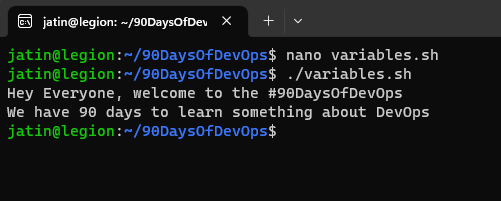
In this example, we define a variable called ChallengeName & TotalDays and set its value to "#90DaysOfDevOps " and "90" respectively. We then use the echo command to print a message that includes the value of the ChallengeName & TotalDays variable.
Conditionals
Conditionals are used to execute different commands based on a condition. Here's an example:
Create a file named
conditionals.sh
touch conditionals.sh
chmod +x conditionals.sh
nano conditionals.sh
Add the following code to the conditional.sh file,
# Variables to be defined
ChallengeName= #90DaysOfDevOps
TotalDays=90

# User Input
echo "Enter your name"
read name
echo "Welcome $name to $ChallengeName"
echo "How Many Days of the $ChallengeName challenge have you completed?"
read DaysDone

if [ $DaysDone-eq 90 ]
then
  echo "You have finished, well done"
elif [ $DaysDone -lt 90 ]
then
  echo "Keep on going you are doing great"
else
  echo "You have entered the wrong number of days, Try Agin!"
fi
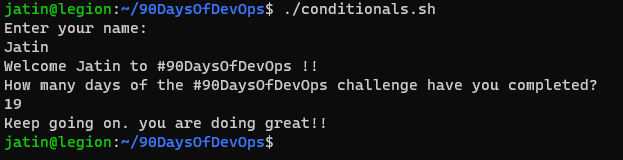
Now run the command ./conditionals.sh in CLI
here's the output,
Here are the options we use in a conditional statement:
eq- if the two values are equal will return TRUEne- if the two values are not equal will return TRUEgt- if the first value is greater than the second value will return TRUEge- if the first value is greater than or equal to the second value will return TRUElt- if the first value is less than the second value will return TRUEle- if the first value is less than or equal to the second value will return TRUE
In this example, we define a variable called ChallengeName & TotalDays and set its value to "#90DaysOfDevOps" and 90 respectively. We then use an if statement to check if the DaysDone is less than(-lt) or equal to(-eq) 90. If the condition is true, we print the echo statement. If the condition is false, it will print "entered day is greater than that of challenge".
User Creation
Bash can be used to create users using scripts,
Let's create some users,
touch create_user.sh
chmod +x create_user.sh
nano create_user.sh
Add the following content to the file create_user.sh :
# Check if the user is root
if [ "$(id -u)" -ne 0 ]; then
  echo "This script must be run as root."
  exit 1
fi

# Take username and password from user
echo " Enter username: "
read  username

echo " Enter password: "
read  password

# Create the user
useradd -m -p $(openssl passwd -1 $password) $username

# Change the user's shell to bash
chsh -s /bin/bash $username

# Add the user to the sudo group
adduser $username sudo

# Show success
echo "User $username has been created successfully."
$(id -u): This command retrieves the user ID (UID) of the current user running the script. Theid -ucommand specifically returns the UID.-ne: This is a comparison operator that stands for "not equal." It checks if the left operand is not equal to the right operand.0: In this context,0represents the UID of the root user. The root user has a UID of0on most Linux systems.then: If the condition inside theifstatement evaluates to true (i.e., the current user is not root).echo "This script must be run as root.": This line prints the error message to the console, notifying the user that the script must be executed as the root user.exit 1: This command terminates the script with an exit code of1. An exit code of0typically indicates success, while any non-zero exit code indicates an error or failure.useraddwill create the user's home directory and copy the contents from the/etc/skel.-m: This option is used to create the user's home directory.-p $(openssl passwd -1 $password): This part sets the user's password. Theopenssl passwdcommand generates a hashed representation of the password. The-1option specifies the use of the MD5-based password algorithm.
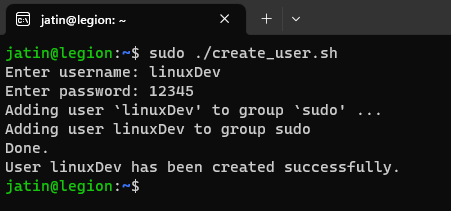
Now run the command sudo ./create_user.sh, add sudo before this command as it allows it to be executed with root privilege. As mentioned the script.
Here's the output:
Conclusion
The Bourne Bash shell is a powerful tool for working with the command line in Unix-like operating systems. In this blog, we explored some of the basic features of the Bourne Bash shell, including variables, conditionals, and loops. With these tools, you can automate tasks, manipulate files and directories, and much more.


